
If you’ve been using GA4’s native BigQuery export, you’ve probably run into its limitations: there’s a 24-hour delay for standard (free) exports, data can arrive incomplete when events are dropped on the client side, and you have zero ability to enrich the raw data before it lands in your warehouse.
Server-Side Google Tag Manager (sGTM) solves all three problems elegantly. By writing GA4 event data directly to BigQuery from your server-side container, you gain real-time data streaming, server-level enrichment, and a pipeline that’s immune to ad blockers and client-side JavaScript failures. This guide walks you through the full setup — from configuring your sGTM container to writing events to a BigQuery table in real time.
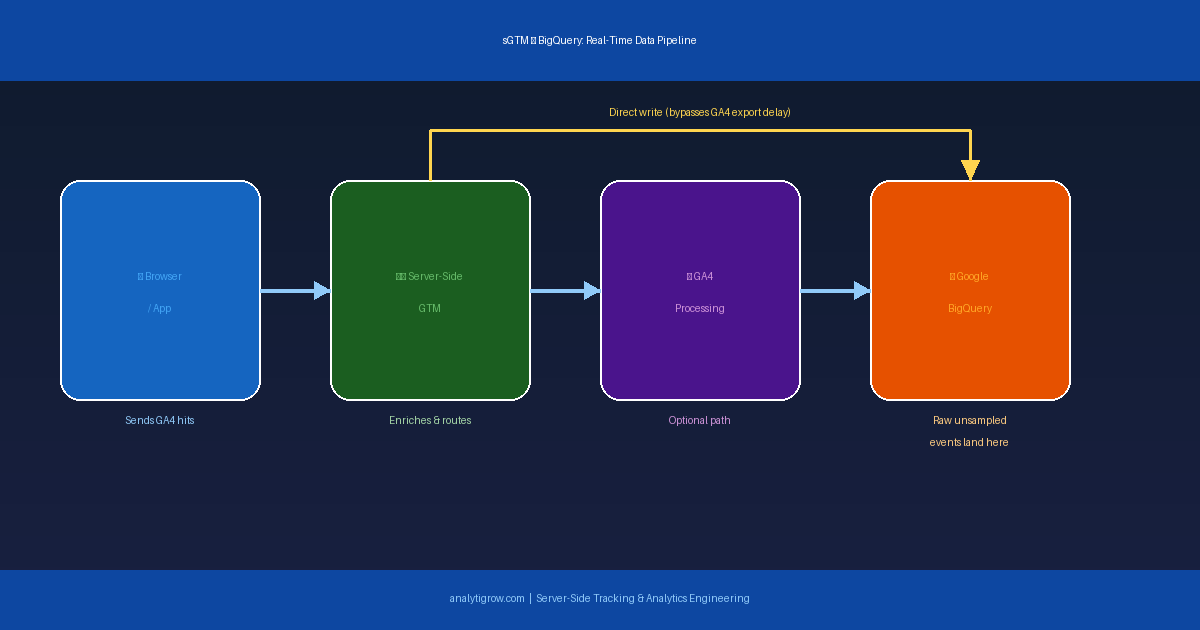
Why Skip GA4’s Standard BigQuery Export?
Delay: The free-tier daily export arrives with a 24-hour lag. Even the streaming intraday export isn’t truly real-time — events batch in 15-30 minute windows. Client-side data loss: If a user has an ad blocker or leaves before the GA4 hit fires, that event is gone. No enrichment: GA4 exports raw event data with no way to join in server-side business logic before it lands in your warehouse. Cardinality limits: GA4’s own processing quirks apply before data reaches the export layer, even though BigQuery exports are unsampled compared to the UI.
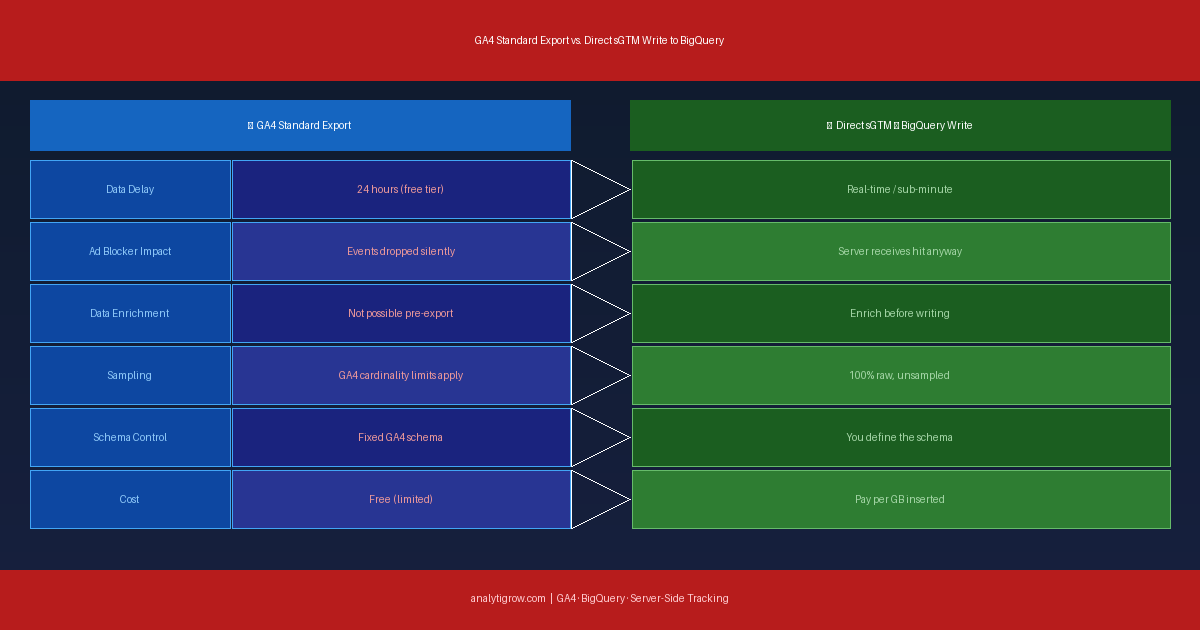
What You’ll Need Before You Start
- A Server-Side GTM container already deployed on Google Cloud Run, App Engine, or a custom server
- A Google Cloud Project with BigQuery enabled
- A BigQuery dataset created in your project
- A service account with BigQuery Data Editor permissions and its JSON key available
- Basic familiarity with GTM tag configuration
Step 1: Create Your BigQuery Dataset and Table
In the Google Cloud Console, go to BigQuery, select your project, and click Create Dataset. Name it something like ga4_server_events and choose your region — keep it consistent with your sGTM deployment region for lower latency. Inside the dataset, click Create Table, choose Empty table, and define your schema.
A solid starting schema includes: event_timestamp (TIMESTAMP), event_name (STRING), client_id (STRING), session_id (STRING), page_location (STRING), source (STRING), medium (STRING), campaign (STRING), user_id (STRING), country (STRING), device_category (STRING), and event_params (JSON). The JSON field for event params is especially useful — it stores the entire parameter payload flexibly without pre-defining every possible parameter as its own column.
Step 2: Create a Service Account for BigQuery Access
In the Cloud Console, go to IAM and Admin > Service Accounts, click Create Service Account, and name it something like sgtm-bigquery-writer. Assign it the BigQuery Data Editor role scoped to your specific dataset — not the whole project. Create and download a JSON key for this service account, then store it securely as an environment variable or in Google Secret Manager on your sGTM server.
Step 3: Add the BigQuery Tag in Server-Side GTM
Server-Side GTM supports custom tag templates written in Sandboxed JavaScript. You have two options:
Option A — Community Template: In your sGTM workspace, go to Tags > New > Community Template Gallery, search for “BigQuery”, and add the template. Configure it with your GCP Project ID, Dataset ID, Table ID, Service Account Key, and map your sGTM event data fields to your table schema.
Option B — Custom Template: Go to Templates > New Tag Template, add BigQuery permission under the Permissions tab, and write Sandboxed JavaScript using the built-in require('BigQuery') API to call the streaming insert endpoint. This gives you full control over exactly what gets written and how the data is shaped.
Step 4: Configure Your Trigger
Set the tag to fire on a GA4 event trigger. Go to Triggers > New, choose Custom trigger type, and scope it to your most important events first — like purchase, generate_lead, or add_to_cart — before expanding to all events. Writing every single GA4 event to BigQuery at scale can generate significant streaming insertion costs if you’re not selective from the start.
Step 5: Enrich Your Data Before Writing
This is where server-side GTM truly outperforms the standard GA4 export. Before your tag writes to BigQuery, you can enrich the event payload with server-side variables and lookups. CRM data: Look up the user ID in your CRM API and append customer tier, lifetime value, or account status to every BigQuery row at write time. Geolocation: Use the getRemoteAddress API to capture the raw IP and map it server-side — more accurate than GA4’s geo processing. UTM normalization: Strip inconsistent casing and typos from campaign parameters before they hit BigQuery, keeping your reporting clean from day one. Server timestamp: Use your sGTM server’s authoritative timestamp as event_timestamp in BigQuery rather than the potentially inaccurate client-side value.
Step 6: Test in Preview Mode
Always test in sGTM Preview mode before publishing. Click Preview in your workspace and send a test event from your site with the GTM web container also in preview. In the sGTM preview panel, confirm your BigQuery tag fires and shows Success. Then go to BigQuery and run this query to verify rows are appearing in real time:
SELECT *
FROM `your_project.ga4_server_events.raw_events`
ORDER BY event_timestamp DESC
LIMIT 10
Step 7: Monitor Costs and Optimise
The BigQuery Streaming Insert API charges per GB inserted. Set up a budget alert in Google Cloud Billing. Also partition your table by event_timestamp (day) to reduce downstream query costs, cluster by event_name and source for faster analysis, and filter your trigger to only write the events that matter to your reporting.
What This Unlocks for Your Analytics Stack
Real-time Looker Studio dashboards connected directly to BigQuery — updating as events happen, not 24 hours later. True session stitching using SQL on raw client_id and session_id data, free from GA4’s opinionated session model. Unsampled funnel analysis on 100% of your event data with no cardinality limits. ML pipelines feeding directly from BigQuery into BigQuery ML or Vertex AI for propensity scoring and churn prediction. Offline data joins — JOIN your sGTM events with CRM records, order data, or call center logs in BigQuery for true omnichannel attribution.
Common Mistakes to Avoid
Overly broad service account permissions: Grant only BigQuery Data Editor on the specific dataset. Silent failure handling: The Streaming Insert API can return errors — ensure your tag’s failure callback logs to Cloud Logging so you can detect data gaps. No schema versioning plan: As your tracking plan evolves, you’ll need to add columns; BigQuery supports adding nullable columns without breaking existing data, so plan for this from the start. Accidental PII exposure: sGTM gives you access to raw IP addresses and full request payloads — be deliberate about what you write and ensure compliance with GDPR, CCPA, or whichever privacy framework applies to your users.
Final Thoughts
Writing GA4 data directly to BigQuery from your server-side GTM container is one of the most powerful setups in modern analytics. It gives you real-time, unsampled, enriched event data in a warehouse you fully control — without relying on GA4’s opinionated processing or delayed export schedules. The setup takes more initial effort than enabling GA4’s native BigQuery export, but the payoff is a pipeline that’s more reliable, more flexible, and far more capable of supporting advanced analytics and ML use cases. If you’re already running a server-side GTM container, this is the natural next step. And if you’re not yet, this use case alone makes a compelling argument for why you should be.
Need help setting up server-side GTM or building a custom GA4 to BigQuery pipeline for your business? Get in touch with Analytigrow — we specialize in analytics infrastructure that actually works.