
If you’ve ever noticed unusually high session counts in Google Analytics 4 or suspected your data doesn’t accurately reflect how users actually behave on your site, the culprit might be something deceptively simple: your GA4 session timeout settings.
By default, GA4 ends a session after 30 minutes of user inactivity. That sounds reasonable — until you think about the types of content your users consume. A visitor reading a long-form article, watching an embedded video, or completing a multi-step form could easily spend more than 30 minutes without triggering an event. When that happens, GA4 artificially splits one visit into two (or more) sessions, inflating your session count and distorting your conversion rates.
In this guide, you’ll learn exactly how to change GA4 session timeout settings, what the right value is for your specific site type, and why this small configuration change can have a surprisingly big impact on your analytics data quality.
What Is a Session in GA4?
Before diving into the settings, it helps to understand what GA4 counts as a session. A session in GA4 is a group of user interactions with your website or app that take place within a given time frame. A new session starts when a user opens your website for the first time, when the configured timeout passes without any user interaction, or when a new day begins at midnight in the property’s time zone.
Unlike Universal Analytics, GA4 uses an event-based data model. Sessions are still tracked, but they’re derived from events rather than being the primary unit of measurement. This means session data quality is directly affected by how you configure your timeout.
Why the Default 30-Minute Timeout May Be Wrong for Your Site
The 30-minute default was inherited from Universal Analytics and works well for standard content websites. However, it’s often the wrong setting for e-learning platforms (users watching 45-90 min videos), SaaS dashboards (users leaving tabs open for hours), long-form content blogs (articles taking 40+ minutes to read), real estate/comparison sites, and healthcare or financial portals where users read carefully before acting.
GA4 Session Timeout Range: What Are Your Options?
GA4 allows you to set the session timeout anywhere between 5 minutes and 7 hours 55 minutes (475 minutes). For standard blogs: 30 min (default). E-commerce: 30–45 min. SaaS/web apps: 2–4 hours. E-learning/video: 3–7 hours. Healthcare/finance: 45–90 min. B2B agency sites: 30–45 min.
How to Change GA4 Session Timeout: Step-by-Step
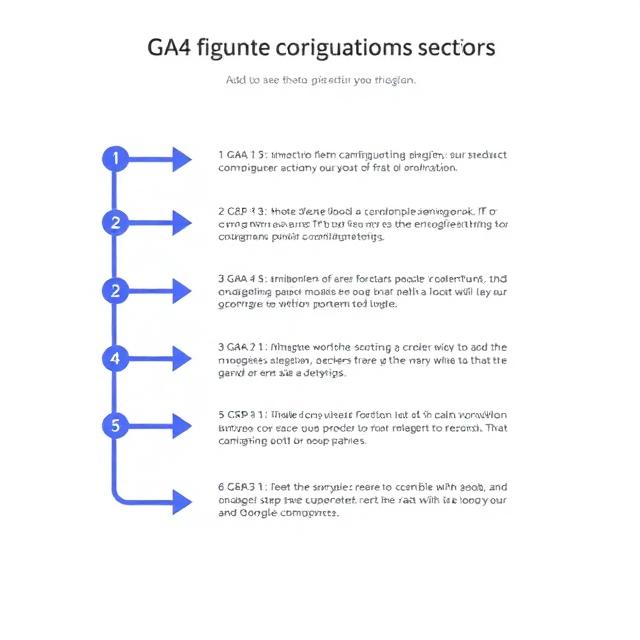
Step 1: Go to Your GA4 Property Admin Panel
Log into Google Analytics and make sure you’re in the correct GA4 property. Click on the Admin gear icon in the lower-left corner of the screen.
Step 2: Select Your Data Stream
In the Admin panel, under the Property column, click on Data Streams. Click on the name of the data stream you want to configure. Most websites will have a single web data stream listed here.
Step 3: Open the Google Tag Settings
Scroll down to the bottom of the data stream detail page. Under the Google tag section, click on Configure tag settings. Note: this setting lives inside the Google tag configuration — a common source of confusion.
Step 4: Click “Adjust Session Timeout”
In the tag settings panel, find Adjust session timeout and click to expand. You’ll see two fields: Session timeout (the inactivity window) and Engaged session timeout (how long a session must last to count as engaged — default is 10 seconds).
Step 5: Set Your Custom Session Timeout
Click the Edit button next to the session timeout field. Enter your desired value in hours and minutes. After entering your value, click Save. The change applies to new sessions only — existing sessions are unaffected.
Step 6: Verify the Change
Open your website in an incognito window. Wait slightly longer than your old timeout without clicking, then interact with the page. Check GA4 real-time reports — you should see it still recorded as a single session.
How to Change the Engaged Session Timeout in GA4
While in the same settings panel, you can also adjust the Engaged session timeout (default: 10 seconds). Options are 10, 20, 30, 40, 50, or 60 seconds. For content-heavy or B2B sites, setting this to 30–60 seconds creates a more meaningful engagement rate benchmark by filtering out accidental visits.
How the Session Timeout Affects Key GA4 Metrics
Sessions — A longer timeout means fewer sessions for the same user visits. Expect a session count drop if you’ve been inflating counts with artificial splits. Engagement Rate — With fewer total sessions but the same engaged sessions, your engagement rate will increase. Average Session Duration — Previously-split sessions now count as single longer sessions, increasing duration accuracy. Conversion Rate — Conversions that previously fell into a “new” timeout-triggered session are now correctly attributed, improving your rate. Bounce Rate — In GA4, this is the percentage of non-engaged sessions. Fixing timeout improves this metric’s accuracy too.
Common Mistakes to Avoid
1. Setting the timeout too high — A 7-hour timeout when your average session is 20 minutes means genuine re-visits get counted as the same session, underestimating return visitor rate. 2. Not checking data stream level — Session timeout is set per data stream, not at property level. Configure web, iOS, and Android streams separately. 3. Looking in the wrong settings area — It’s nested inside Google Tag settings within the data stream, not in property or event settings. 4. Not documenting the change — Add an annotation in GA4 noting the date of the change so future analysts understand data shifts.
Should You Use GTM to Control Session Timeout?
You can set session timeout in GTM via the GA4 Configuration tag by adding a session_duration field (in seconds). However, the native GA4 interface method is simpler, more reliable, and doesn’t require a GTM deployment. Use GTM for event-level customization, not property-level configuration like session timeout.
Server-Side Tagging Considerations
If you’re using a server-side GTM setup for GA4, the session timeout setting in the GA4 UI still applies — the property-level configuration takes precedence. For standard server-side GTM setups using the official GA4 tag template, the UI setting works correctly without additional configuration.
Practical Example: Before and After for a SaaS Company
A B2B SaaS platform with 45–60 minute average sessions was using the default 30-minute timeout. Power users generated 2–3 sessions per work session, and checkout confirmations sometimes landed in a “new” session, skewing conversion data. After updating to a 2-hour timeout: session count dropped ~35%, average session duration rose ~110%, conversion rate improved ~18%, and engagement rate jumped from 61% to 79%. Same user behavior — just measured more accurately.
Final Thoughts
Knowing how to change GA4 session timeout settings is one of the most underrated configuration skills in analytics. It’s a small setting most marketers never touch — but it has outsized effects on session count accuracy, engagement rate, conversion rate, and average session duration. The next time your GA4 data “feels off,” check the session timeout first. It’s a two-minute fix that can make your entire dataset significantly more reliable.
Frequently Asked Questions
Does changing GA4 session timeout affect historical data? No — changes only apply to new sessions. Historical data is not recalculated. Always annotate the change date.
Can I set different session timeouts for mobile and desktop? Not within a single data stream. Create separate data streams per platform if you need different timeouts.
What if a user reads a long article without clicking? Consider setting up a GTM timer trigger that fires a “heartbeat” event every few minutes to keep the session alive during passive reading.
What is the maximum session timeout in GA4? 7 hours and 55 minutes (475 minutes).