
If you run a business in San Francisco and rely on Google Analytics 4 (GA4) to make marketing decisions, there’s a good chance you’re making those decisions with incomplete data — and you might not even know it.
Here’s the uncomfortable truth: ad blockers are now installed by more than 52% of American internet users, and the number is growing. Every time someone visits your website with an ad blocker active, your GA4 tracking code gets silently blocked. No pageview recorded. No conversion tracked. No session counted. It simply disappears from your reports as if that visitor never existed.
For a San Francisco startup spending $10,000/month on Google Ads, this could mean you’re evaluating campaign performance on data that’s missing nearly half your real results. For a local SaaS company, it means your funnel reports are lying to you.
The fix? Server-side Google Tag Manager (GTM). In this guide, we’ll break down exactly why your GA4 data is bleeding out, how server-side GTM plugs that hole, and how San Francisco businesses can set it up — even without a full-time developer.
Why GA4 Loses Data to Ad Blockers (And It’s Getting Worse)
When you install standard GA4 on your website, the tracking script runs in the visitor’s browser (client-side). It’s a JavaScript file that loads alongside your page, collects event data, and sends it to Google’s servers. Simple, easy — and completely visible to ad blockers.
Ad blocking software like uBlock Origin, AdBlock Plus, and Brave Browser’s built-in shield maintain lists of known tracking scripts. Google’s analytics and tag manager domains are on virtually every one of those lists. When a visitor with an ad blocker lands on your site, the browser checks that list, sees googletagmanager.com or google-analytics.com, and drops the request before it ever fires.
The scale of this problem has exploded in recent years:
- Global ad blocker usage surpassed 1 billion active users in 2026
- Ad blocker adoption in the US has reached 52% — over half your visitors
- Tech-savvy cities like San Francisco typically see even higher rates, sometimes 60–70%, because the local population skews toward developers and digital professionals who are more likely to use ad blocking tools
- On top of ad blockers, browser privacy features in Safari (ITP) and Firefox further restrict cookie-based tracking
The result: studies show businesses are losing 20–40% of GA4 sessions and conversion events on average — and if your audience is technical (as many San Francisco B2B and SaaS companies’ audiences are), that number can climb much higher.
This isn’t a GA4 bug. It’s a structural limitation of client-side tracking in a world where privacy tools are the norm, not the exception.
What Is Server-Side GTM — And How Does It Fix This?
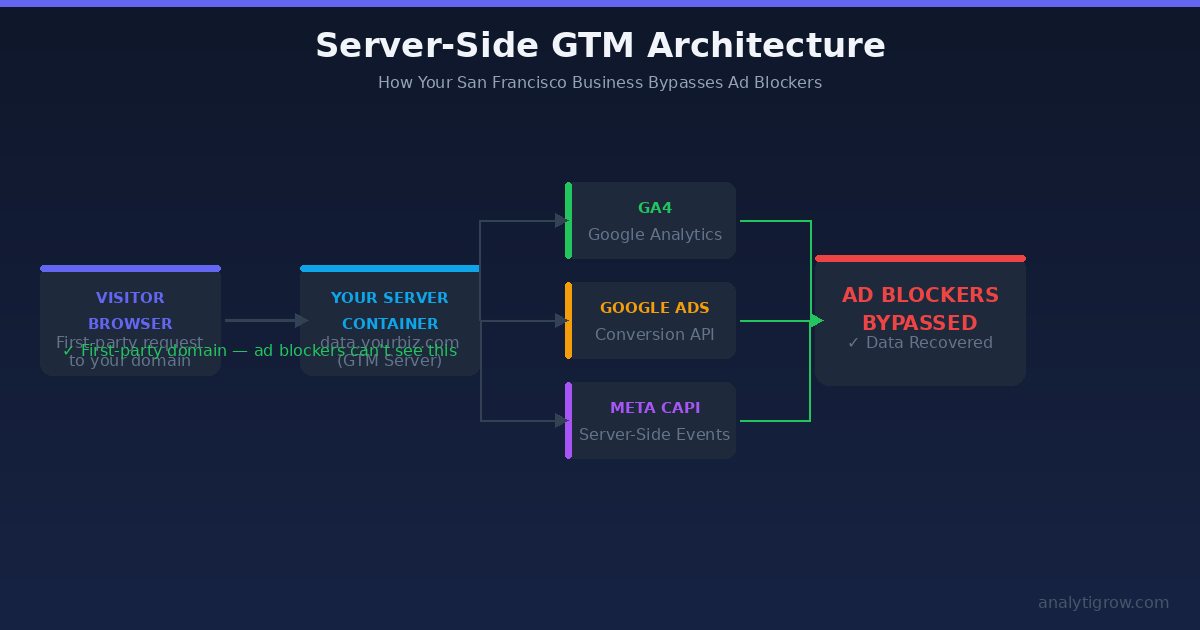
Server-side Google Tag Manager moves your tracking logic off the visitor’s browser and onto a server you control. Instead of loading Google’s scripts in the browser (where ad blockers can see and block them), your website sends data to your own server — something like metrics.yourbusiness.com — which then forwards that data to GA4, Google Ads, Meta, and other platforms.
Because the request goes to your own domain rather than googletagmanager.com, ad blockers can’t identify and block it. From the browser’s perspective, it’s just your site talking to itself.
Client-Side GTM (Traditional)
- Browser loads tracking scripts from Google’s domains
- Ad blockers recognize and block those domains
- Data never reaches GA4 or your ad platforms
- You have no idea what you’re missing
Server-Side GTM (The Fix)
- Browser sends a single request to your own first-party subdomain
- Your server receives and processes the event data
- Your server securely forwards the data to GA4, Google Ads, Meta Pixel, etc.
- Ad blockers see only traffic to your domain — nothing suspicious to block
Beyond ad blocker bypass, server-side GTM provides additional benefits that San Francisco businesses increasingly care about:
- Better data privacy compliance — You control what data gets forwarded, making CCPA compliance easier
- Improved page performance — Fewer browser scripts means faster load times
- More accurate conversion tracking — Recover the 20–40% of conversions that client-side tracking misses
- First-party data ownership — Your server becomes the source of truth, not Google’s infrastructure
The Real Cost of Missing GA4 Data for San Francisco Businesses
Before we walk through the setup, it’s worth pausing to understand what incomplete GA4 data actually costs you — because for many San Francisco businesses, the answer is “a lot.”
Paid Advertising ROI Is Distorted
If you’re running Google Ads or Meta Ads campaigns targeting San Francisco’s competitive market, your ROAS (Return on Ad Spend) calculations are based on the conversions GA4 reports. If GA4 is missing 30% of conversions, your actual ROAS is significantly better than reported — but you’re also making budget allocation decisions on wrong numbers. You might be pausing campaigns that are actually performing well, or scaling ones that only appear to perform well because of data sampling bias.
Funnel Analysis Is Unreliable
GA4’s funnel exploration reports are powerful — but only if the underlying event data is complete. If ad-blocker users systematically drop out of your funnels (because their events aren’t tracked), your funnel drop-off analysis will point to the wrong steps as problem areas. You could spend months “optimizing” a step in your funnel that isn’t actually leaking.
Remarketing Audiences Are Smaller Than They Should Be
GA4 builds audience lists for Google Ads remarketing. If 40% of your site visitors are invisible to GA4, your remarketing pool is 40% smaller than it should be. You’re paying more per impression to reach fewer of your actual past visitors.
Step-by-Step: Setting Up Server-Side GTM for Your San Francisco Business
Setting up server-side GTM involves several components. We’ll walk through the full process — from creating your server container to pointing your GA4 data stream through it.
Step 1: Create a Server Container in GTM
Log into tagmanager.google.com and navigate to your account. Click Create Container, give it a name (e.g., “YourBusiness — Server”), and under Target Platform, select Server. Click Create.
You’ll now have two separate GTM containers: your existing web container and the new server container. They work together — the web container sends data to the server container, which then distributes it to your tools.
Step 2: Choose Your Hosting Solution
Your server container needs to run somewhere. You have three main options for San Francisco businesses:
Option A: Google Cloud Run (Recommended for most businesses)
Google Cloud Run is the most commonly used hosting for server-side GTM in 2026. It scales automatically, integrates natively with Google’s infrastructure, and typically costs $20–60/month for most small business traffic volumes. GTM can provision this automatically when you set up your server container.
Option B: Stape.io (Easiest for non-developers)
Stape offers managed server-side GTM hosting starting at around $20/month. It handles all the infrastructure complexity for you — ideal if you don’t have a developer on staff. Many San Francisco small businesses use Stape as their first step into server-side tracking.
Option C: Self-hosted on AWS or DigitalOcean
For businesses with technical teams, self-hosting gives maximum control and can reduce costs for high-traffic sites. Requires more DevOps knowledge to set up and maintain.
Step 3: Set Up Your First-Party Subdomain
This is the crucial step that makes ad blocker bypass work. You need to route your server container through a subdomain of your own website — something like data.yourbusiness.com or metrics.yourbusiness.com.
In your domain registrar or DNS provider (Cloudflare, Google Domains, etc.), create a CNAME record that points your chosen subdomain to your server container’s URL. The exact URL depends on your hosting choice (Cloud Run, Stape, etc.).
Once the DNS record propagates, your server container is accessible at your own domain — and ad blockers have no reason to block requests going to your own website.
Step 4: Configure Your Web Container to Send Data to the Server
Now you need to tell your existing client-side GA4 implementation to route data through your server container instead of directly to Google.
In your web GTM container, find your GA4 Configuration tag. Add the following field to the tag configuration:
- Field name:
server_container_url - Value:
https://data.yourbusiness.com(your first-party subdomain)
This tells GA4 to send events to your server first, rather than directly to analytics.google.com. Since this request goes to your own domain, it bypasses ad blockers entirely.
Step 5: Set Up the GA4 Client and Tag in Your Server Container
Inside your server GTM container, you need to configure:
A GA4 Client — This listens for incoming GA4 events hitting your server container and parses them into GTM’s data layer format.
A GA4 Tag — This takes the parsed event data and forwards it to Google’s actual GA4 servers. This is the outbound leg of the journey — from your server to Google — which happens server-to-server, outside the browser entirely.
Both are available as built-in templates in GTM. Add the GA4 Client first, then the GA4 tag. Configure the tag with your GA4 Measurement ID.
Step 6: Test in Preview Mode
Before publishing, use GTM’s Preview mode to verify the setup. In your server container, click Preview. Then trigger some events on your website (page loads, button clicks, form submissions). You should see events appearing in both your web container’s preview and your server container’s preview.
If events appear in the web container preview but not the server container preview, double-check that your server_container_url parameter is configured correctly and that your DNS record has propagated.
Step 7: Publish and Monitor
Once testing confirms data is flowing correctly, publish both containers. In GA4’s DebugView, you should start seeing events flowing through your new server-side setup.
For the first few weeks after launch, compare your GA4 session counts and conversion numbers to the period before server-side setup. Most San Francisco businesses see a 15–35% increase in recorded sessions and events as previously invisible traffic becomes trackable.
Adding Consent Mode v2 (Critical for CCPA Compliance)
California’s CCPA makes data privacy compliance especially important for San Francisco businesses. If you’re running server-side GTM, you also need to properly implement Consent Mode v2 — and this is where many setups go wrong.
The challenge: consent is collected in the browser (through your cookie banner), but your server container doesn’t automatically know what the user chose. You have to explicitly pass consent state from the browser to your server.
Here’s the correct approach:
- Implement a Consent Mode v2-compatible CMP (Consent Management Platform) in your web container. Popular options include Cookiebot, OneTrust, and Usercentrics.
- Configure your web container GA4 tag to send consent state as an event parameter when forwarding data to your server container.
- In your server container, configure your GA4 server tag to honor the consent parameters received from the web container.
- Test consent scenarios — verify that when a user declines tracking, no personal data flows through to GA4.
Getting this right positions your San Francisco business well ahead of competitors who are either not tracking at all (due to ad blockers) or tracking without proper consent handling (a CCPA liability).
What to Expect After Implementation: Real Numbers
Based on data from implementations across similar businesses, here’s what San Francisco companies typically see after switching to server-side GTM:
- Sessions recovered: 15–40% increase in tracked sessions
- Conversion events recovered: 20–35% more conversions visible in GA4
- Page load improvement: 5–15% faster page loads due to reduced client-side scripts
- Google Ads improvement: Smart bidding algorithms perform better with more complete conversion data, often improving ROAS by 10–25% within 4–6 weeks
The impact is especially pronounced for B2B SaaS companies and tech startups — audiences that are disproportionately likely to use ad blockers. If your company targets developers, IT professionals, or digital marketers (common in San Francisco’s tech ecosystem), your pre-implementation data loss could be even higher than average.
Is Server-Side GTM Right for Your Business?
Server-side GTM makes the most financial sense for San Francisco businesses that are:
- Spending $3,000+/month on paid media (Google Ads, Meta Ads, LinkedIn Ads)
- Running conversion-optimized campaigns where accurate tracking directly impacts Smart Bidding
- In B2B or technical industries where ad blocker usage is especially high
- Subject to CCPA compliance requirements and need fine-grained data control
- Experiencing unusually low conversion rates that might be tracking gaps rather than real performance problems
How Analytigrow Helps San Francisco Businesses Implement Server-Side GTM
At Analytigrow, we specialize in analytics infrastructure for San Francisco businesses — from early-stage startups to established enterprises. Server-side GTM implementation is one of our most requested services, and for good reason: the data recovery typically delivers an ROI that’s visible within the first month.
Our typical server-side GTM engagement includes:
- Audit of your current GA4 and GTM setup to identify data gaps
- Server container creation and first-party subdomain configuration
- Migration of all existing GA4 events and conversion tracking to server-side
- Consent Mode v2 implementation for CCPA compliance
- Extension to Google Ads and Meta conversion APIs (server-side)
- BigQuery export setup for raw event data access
- Looker Studio dashboard showing before/after data recovery metrics
Ready to find out how much data your GA4 is missing? Contact Analytigrow for a free GA4 data audit — we’ll show you exactly what you’re missing and what it’s costing you.
Frequently Asked Questions
Will server-side GTM completely eliminate GA4 data loss?
It significantly reduces data loss, recovering 20–40% of previously missing data. However, users who disable JavaScript entirely or use very aggressive privacy tools may still be untracked. Server-side GTM is the most effective single intervention available, but not a 100% complete solution.
Does server-side GTM violate any platform terms of service?
No. Server-side GTM is an officially supported Google product. Using it to route data through your own domain is fully compliant with Google’s terms. The key requirement is that you still honor user consent — don’t use server-side tracking to track users who have opted out.
How long does a server-side GTM implementation take?
A basic implementation with GA4 only typically takes 4–8 hours for an experienced analytics engineer. A full implementation including Google Ads conversions, Meta CAPI, and Consent Mode v2 typically takes 2–3 days.
Can I implement server-side GTM on Shopify or WordPress?
Yes. Server-side GTM works with any website platform. The server container is platform-agnostic — changes happen at the DNS and GTM level, not in your website’s CMS. This makes it accessible to San Francisco businesses running on any tech stack.
What’s the difference between server-side GTM and the Conversions API?
Meta’s Conversions API (CAPI) and Google’s Enhanced Conversions are platform-specific server-side tracking solutions for their respective ad platforms. Server-side GTM is a platform-agnostic infrastructure layer that can send data to multiple platforms simultaneously — including GA4, Google Ads, Meta CAPI, LinkedIn, TikTok, and others — from a single server container.