
Are you collecting data in Google Sheets — form responses, CRM exports, offline sales — and wishing you could get that data into GA4 without building a complex server-side infrastructure? You’re not alone.
Most analytics tutorials focus on tracking website interactions via GTM or the gtag.js library. But there’s a powerful, underused method that lets you send GA4 events directly from Google Sheets using the GA4 Measurement Protocol and Google Apps Script — no GTM required, no server needed.
In this guide, you’ll learn exactly how to do it, step by step.
What Is the GA4 Measurement Protocol?
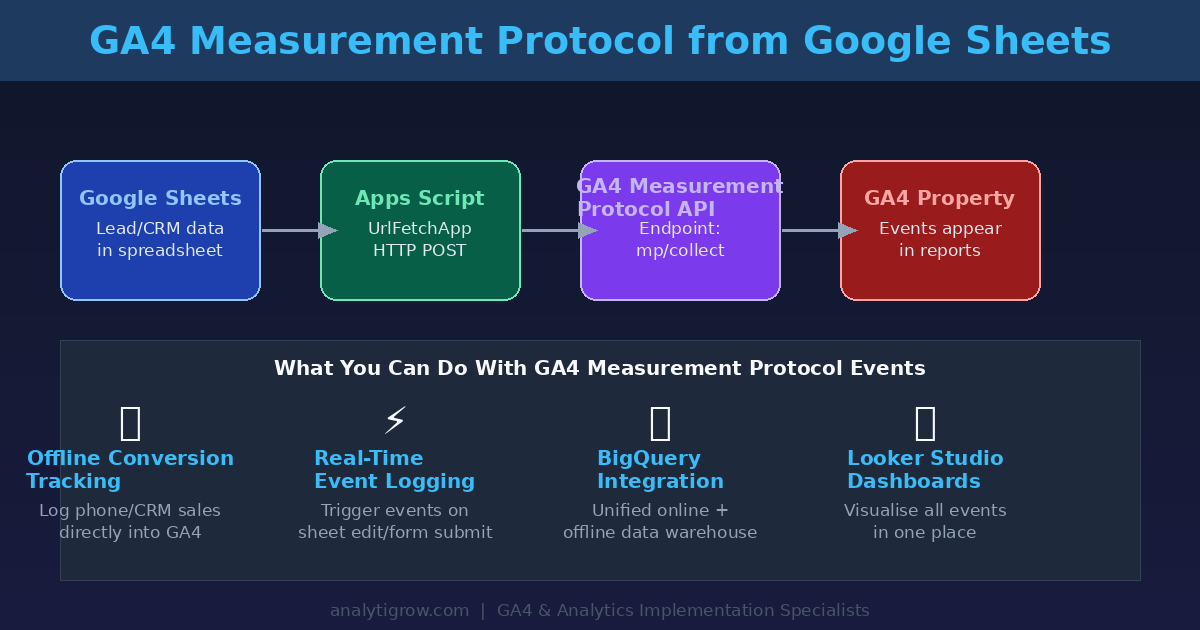
The GA4 Measurement Protocol is a server-to-server API that lets you send events directly to Google Analytics 4 from any platform capable of making an HTTP POST request. Unlike client-side tracking (which runs in a user’s browser), the Measurement Protocol runs server-side — meaning it bypasses ad blockers, browser restrictions, and Intelligent Tracking Prevention (ITP).
Originally introduced for Universal Analytics, the GA4 version was rebuilt from the ground up and supports the same event-driven data model that powers all of GA4.
- Tracking offline conversions (e.g., a phone sale logged in a CRM spreadsheet)
- Sending form submission data from Google Forms/Sheets to GA4
- Appending custom user properties or revenue data after the fact
- Testing and QA — sending synthetic events to validate your setup
- Automating event logging from backend pipelines
Why Use Google Sheets + Apps Script for This?
Google Sheets is arguably the most widely used data tool in the world. Businesses use it to track leads, log sales, manage customer lists, and record offline events. Google Apps Script is the built-in JavaScript scripting layer inside Google Workspace that lets you automate tasks within Sheets, Docs, Gmail, and more.
Combining these with the GA4 Measurement Protocol gives you a free, flexible, zero-infrastructure way to push offline event data into GA4 without server hosting costs, automate reporting pipelines, and enrich GA4 with data that wouldn’t otherwise be tracked — like lead qualification scores or customer lifetime value updates.
Prerequisites
- A GA4 Property — set up and collecting data
- A Measurement ID — found in GA4 > Admin > Data Streams > your stream (format: G-XXXXXXXXXX)
- A Measurement Protocol API Secret — we’ll create this in the next step
- A Google Sheet — this will be your data source
- Basic familiarity with Google Apps Script — no advanced coding required
Step 1: Create a Measurement Protocol API Secret in GA4
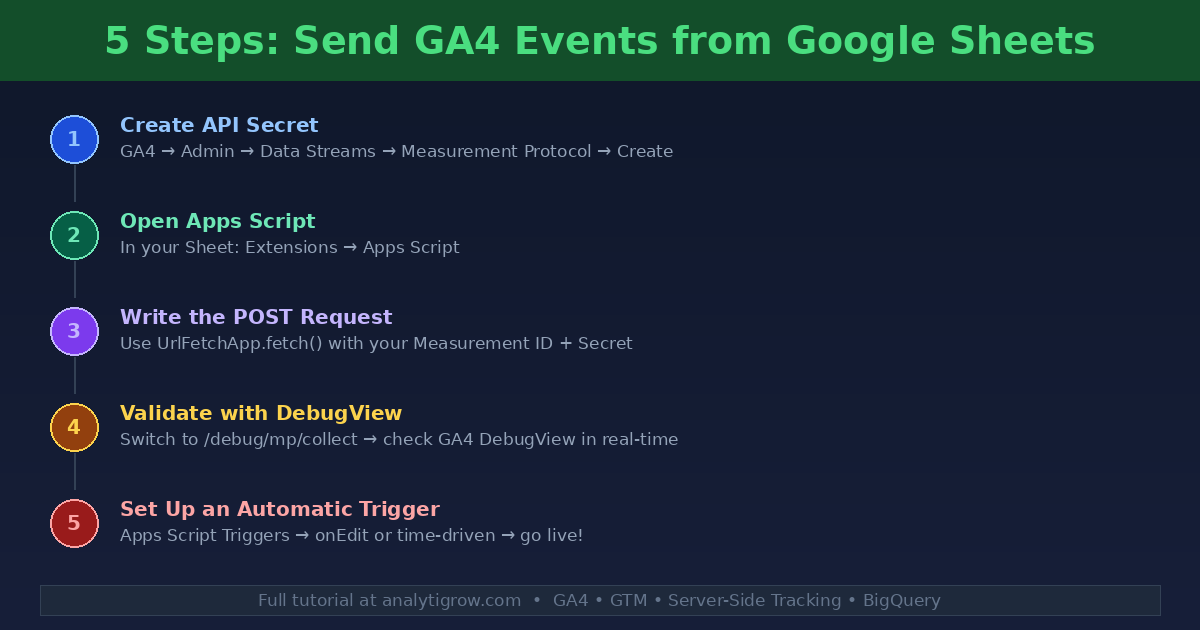
The GA4 Measurement Protocol requires an API secret for authentication. Navigate to GA4 > Admin > Data Streams, select your web data stream, scroll to Measurement Protocol API Secrets, and click Create. Give it a name like “Google Sheets Script” and copy the Secret Value — you’ll need it in your script.
Important: Keep your API secret private. Anyone with this secret can send events to your GA4 property. Never expose it in client-side code.
Step 2: Set Up Your Google Sheet
For this tutorial, we’ll use a Google Sheet tracking offline leads with columns: Timestamp, Client Name, Email, Lead Source, and Deal Value. The goal is to automatically send a generate_lead event to GA4 whenever a new lead is logged. Open your Sheet, then click Extensions > Apps Script to open the editor.
Step 3: Write the Apps Script to Send GA4 Events
Here is a complete script that reads a row from your sheet and sends a GA4 event via Measurement Protocol:
const GA4_MEASUREMENT_ID = "G-XXXXXXXXXX";
const GA4_API_SECRET = "YOUR_API_SECRET_HERE";
const GA4_ENDPOINT = "https://www.google-analytics.com/mp/collect";

function sendGA4Event(clientId, eventName, eventParams) {
  const url = GA4_ENDPOINT + "?measurement_id=" + GA4_MEASUREMENT_ID + "&api_secret=" + GA4_API_SECRET;
  const payload = { client_id: clientId, events: [{ name: eventName, params: eventParams }] };
  const options = { method: "POST", contentType: "application/json", payload: JSON.stringify(payload), muteHttpExceptions: true };
  const response = UrlFetchApp.fetch(url, options);
  Logger.log("GA4 Event sent: " + response.getResponseCode());
}

function processNewLead() {
  const sheet = SpreadsheetApp.getActiveSpreadsheet().getActiveSheet();
  const lastRow = sheet.getLastRow();
  const rowData = sheet.getRange(lastRow, 1, 1, 5).getValues()[0];
  const email = rowData[2];
  const leadSource = rowData[3];
  const dealValue = rowData[4];

  const clientId = Utilities.computeDigest(Utilities.DigestAlgorithm.MD5, email)
    .map(b => (b < 0 ? b + 256 : b).toString(16).padStart(2, "0")).join("");

  const eventParams = { lead_source: leadSource, deal_value: parseFloat(dealValue) || 0, currency: "USD", engagement_time_msec: 1 };
  sendGA4Event(clientId, "generate_lead", eventParams);
}
Key points: the client_id is derived from a hash of the email address for consistency without exposing PII. The engagement_time_msec parameter is required — omitting it causes GA4 to silently filter the event from reports. UrlFetchApp.fetch() is Apps Script's built-in HTTP client running on Google's servers.
Step 4: Set Up an Automatic Trigger
Rather than running the script manually, set it to fire automatically. For a time-driven trigger: In Apps Script, click Triggers > Add Trigger, choose processNewLead, set event source to Time-driven, and select Every 5 minutes. For an onEdit trigger that fires instantly, add this function and register it as an installable trigger:
function onEdit(e) {
  // Fire when column E (Deal Value) is completed
  if (e.range.getColumn() === 5 && e.range.getValue() !== "") {
    processNewLead();
  }
}
Step 5: Validate with GA4 DebugView
Before going live, switch to the debug endpoint: replace mp/collect with debug/mp/collect in the URL. This validates your payload and returns errors as JSON without recording events. Run your function from Apps Script, then open GA4 > Admin > DebugView to watch the event arrive in real time. Once confirmed, switch back to the production endpoint.
Step 6: View Your Events in GA4 Reports
Once events are flowing, find them under GA4 > Reports > Realtime (within seconds) or GA4 > Reports > Engagement > Events (after 24–48 hours processing). To slice by lead_source or deal_value, register these as custom dimensions under GA4 > Admin > Custom Definitions.
Troubleshooting Common Issues
Events not appearing: Verify your measurement_id and api_secret have no extra spaces, and that engagement_time_msec is included in params. Check execution logs via Apps Script > View > Logs.
HTTP 204 but no data: A 204 means the request was accepted but GA4 filtered it. Use the debug endpoint to identify missing required fields.
Events in Realtime but not reports: This is normal — standard reports have a 24–48 hour processing lag. Seeing it in Realtime confirms data is being received correctly.
Advanced: Sending Batch Events
The GA4 Measurement Protocol supports up to 25 events per request, making batch imports far more efficient. This pattern is ideal for nightly imports or historical data loads:
function processBatchLeads() {
  const sheet = SpreadsheetApp.getActiveSpreadsheet().getActiveSheet();
  const lastRow = sheet.getLastRow();
  const startRow = Math.max(2, lastRow - 24);
  const data = sheet.getRange(startRow, 1, lastRow - startRow + 1, 5).getValues();

  const events = data.map(row => ({
    name: "generate_lead",
    params: { lead_source: row[3], deal_value: parseFloat(row[4]) || 0, currency: "USD", engagement_time_msec: 1 }
  }));

  const payload = { client_id: "batch_" + Date.now(), events: events };
  const url = GA4_ENDPOINT + "?measurement_id=" + GA4_MEASUREMENT_ID + "&api_secret=" + GA4_API_SECRET;
  UrlFetchApp.fetch(url, { method: "POST", contentType: "application/json", payload: JSON.stringify(payload), muteHttpExceptions: true });
}
Connecting to BigQuery and Looker Studio
Once your offline events are in GA4, link it to BigQuery (GA4 > Admin > BigQuery Links) to export all events — including Measurement Protocol events — to a BigQuery dataset daily. From there, build a Looker Studio dashboard that joins online and offline conversion data, and run SQL queries to calculate true attribution across all channels. This creates a first-party analytics stack fully under your control, resistant to ad blockers and browser restrictions, capable of answering business questions that standard web analytics simply cannot.
Conclusion
Sending GA4 events from Google Sheets using the Measurement Protocol and Apps Script is one of the most practical yet underused techniques in the analytics toolkit. It requires no GTM setup, no server hosting, and no third-party tools — just a GA4 property, an API secret, and about 50 lines of JavaScript. Whether you're tracking offline conversions, enriching GA4 with CRM data, or running QA tests, this approach gives you direct control over your event data in a tool you're already using every day.
Need help setting this up? The team at Analytigrow specialises in GA4 implementations, server-side tracking, and custom analytics pipelines. Get in touch and we'll help you build a tracking setup that actually reflects your business reality.