Menu
Google Ads conversion tracking: how to set it up properly
Last updated November 5, 2026 · Ghazanfar · 11 min read
In this post
Google Ads conversion tracking records purchases, leads and calls that follow an ad click and reports them back to Google Ads, where they drive reporting and Smart Bidding. The most reliable setup uses a Google Ads conversion tag through Google Tag Manager, with order ID, value and enhanced conversions on every conversion.
When an account I audit is spending well but bidding badly, I go to Goals and look at the conversion actions before I look at a single campaign. More often than not the problem is there: a GA4 import and a native tag both counting the same purchase, a page view marked primary, or a purchase tag with no value attached. This is how I set Google Ads tracking up so bidding has something true to work with.
What is Google Ads conversion tracking?
It is the part of Google Ads that counts what happens after the click. Each thing you count is a conversion action, a definition that sets the source, value, counting method and attribution window for one type of result.
Google supports several sources for conversion actions, including website tags, GA4 imports, phone calls, app events and offline imports from a CRM. Its conversion tracking overview lists them. For most websites, the choice comes down to two of those sources, and that choice matters more than any other setting.
If you’re new to the topic overall, my conversion tracking guide explains the full chain from click to credited sale.
Google tag or GA4 import: which should you use?
Use a native Google Ads conversion tag for anything you bid on. Keep GA4 imports for cross-checking or for accounts that have no other option.
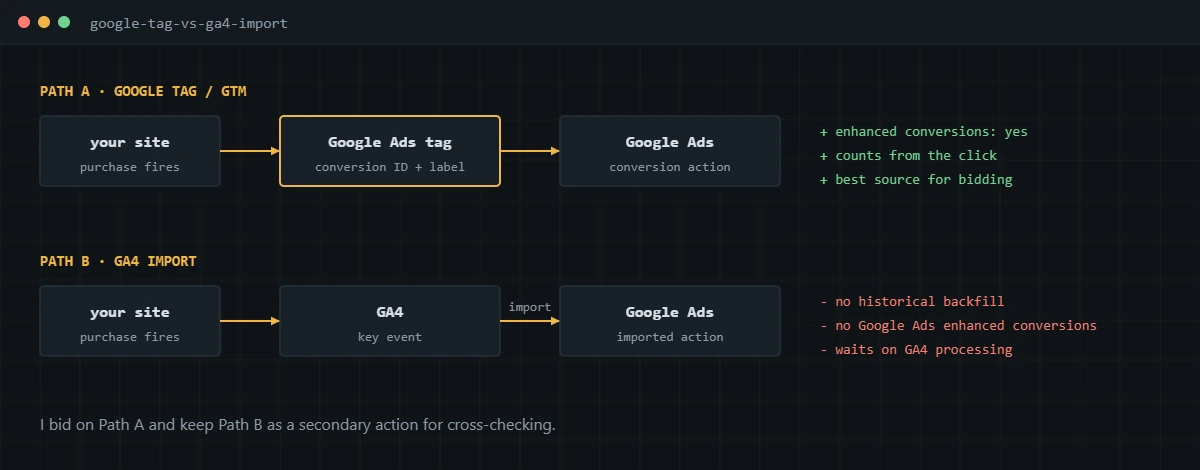
| Google tag or GTM conversion | GA4 key event import | |
|---|---|---|
| Enhanced conversions in Google Ads | Supported | Not supported |
| Historical data | Counts from setup onward | Counts from the import date; no backfill |
| Dependency | Its own tag | GA4 tagging and processing must work first |
| Default status | Primary when created | Depends on account history; check it |
| Best use | Bidding | Secondary comparison, or no developer access |
Two of those rows come straight from Google. Imported key events only count from the day you import them, according to Google’s guide to creating conversions from GA4 key events. And Google’s Analytics documentation states that enhanced conversions in Google Ads don’t work for imported Analytics conversions. If you want enhanced conversions on purchases or leads, the conversion has to come from a Google tag or GTM conversion action.
Whether a new import arrives as primary or secondary depends on the account. Google has set imports to secondary by default in accounts that already had older Analytics goals, so I always open the goal and check rather than assume. My GA4 conversion tracking guide covers the GA4 side of this.
Primary actions count in the Conversions column and are used by Smart Bidding. Secondary actions count only in All conversions and are there to observe.
A clean account usually has one primary action per business goal. I keep add to cart, begin checkout, newsletter signups and any GA4 imports as secondary. They stay visible for diagnosis without pulling bids toward cheap, low-value actions.
Watch the goal level as well. Campaigns can be set to use account-default goals or campaign-specific goals, and a campaign quietly optimizing toward a different goal from the rest of the account is something I find more often than I would like.
How do you set up conversion tracking in Google Ads?
Create the conversion action in Google Ads, then deploy it through Google Tag Manager with real order data. These are the steps I follow for a purchase conversion on a store; a lead form follows the same pattern with a lead ID in place of the order ID.
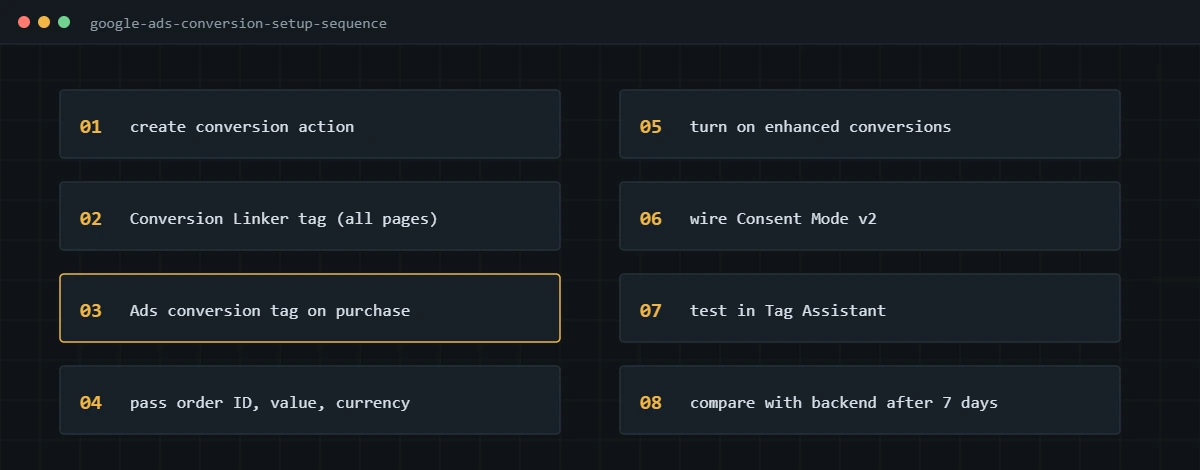
- In Google Ads, go to Goals, then Conversions, and create a new conversion action with Website as the source. Choose manual setup.
- Pick the Purchase category, set the value to use different values for each conversion, set counting to Every, and leave the click-through window at 30 days unless your buying cycle is longer.
- Choose Google Tag Manager as the install method and copy the Conversion ID and Conversion Label.
- In GTM, add a Conversion Linker tag that fires on all pages. It stores the click ID in a first-party cookie, and without it attribution suffers.
- Add a Google Ads Conversion Tracking tag with the ID and label, triggered by the purchase event in the data layer, never by a page view of the thank-you URL.
- Map the Order ID field to transaction_id, the value to the order value as a number, and the currency code. Google uses the order ID to drop duplicate conversions for the same action.
- Turn on enhanced conversions and map user-provided data, covered in the next section.
- Publish, then test with a real order in Tag Assistant before you change any bidding.
The data layer push that the tag reads should look roughly like this:
dataLayer.push({
  event: 'purchase',
  ecommerce: {
    transaction_id: '10482',
    value: 120.00,
    currency: 'USD'
  },
  user_data: {
    email: '[email protected]'
  }
});
Value goes in as a number. I regularly find values pushed as strings with a currency symbol attached, and Google Ads either records zero or a default value. On WooCommerce and Shopify the data layer comes from the platform’s own events, which I’ll cover in separate guides for each.
What are enhanced conversions and how do you turn them on?
Enhanced conversions send hashed first-party data, such as the customer’s email or phone number, along with the conversion so Google can match it to a signed-in Google account when cookies fall short. You turn them on in the conversion settings, accept the customer data terms, and map the user data in your tag.
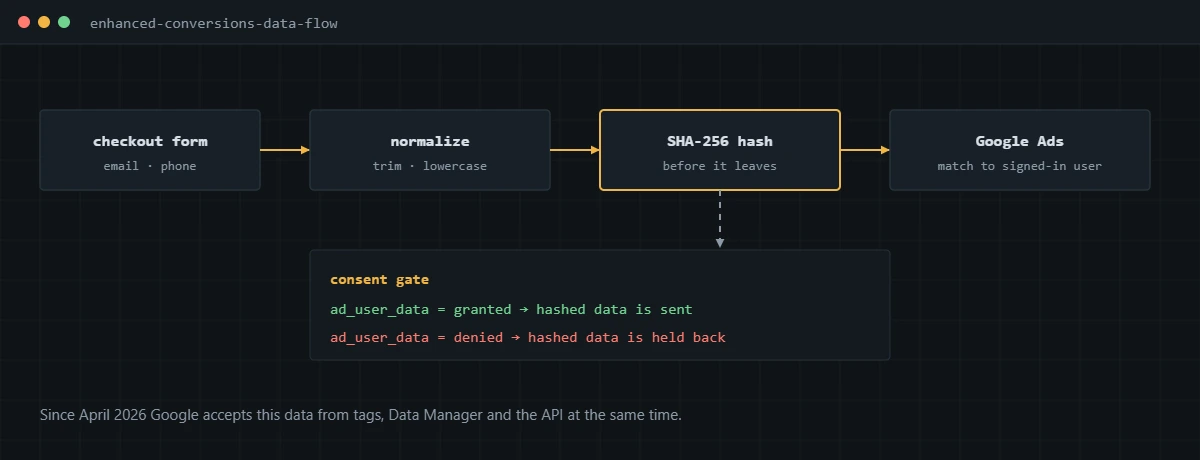
Google changed how this works in 2026. From April 2026, Google Ads accepts user-provided data from website tags, Data Manager and API connections at the same time, so you no longer pick one method. Enhanced conversions for web and for leads were then merged into a single on/off setting, with existing users migrated automatically. Google lays out the change in its update on enhanced conversions settings.
In practice, my setup steps are:
- In Goals, open Conversions, then Settings, turn enhanced conversions on, and accept the customer data terms.
- In GTM, create a User-Provided Data variable that reads the email and phone from the data layer, not from scraping form fields with CSS selectors.
- Attach that variable to the Google Ads conversion tag.
- Place a test order and confirm in Tag Assistant that user data is present and hashed on the conversion hit.
- Check the diagnostics on the conversion action after a few days of traffic.
How does Consent Mode v2 affect Google Ads conversions?
Consent Mode v2 tells Google’s tags what a visitor agreed to, and Google Ads tags change behavior based on it. If ad_storage is denied, the tag can’t use cookies. If ad_user_data is denied, enhanced conversions data isn’t sent, which Google states in its consent mode overview.
For a US-focused account, I still set it up properly for two reasons. Any traffic from the EEA or UK needs it, and US state privacy laws give visitors opt-out rights that your tags should respect. In advanced mode, Google receives cookieless pings when consent is denied and can model some of the missing conversions. I test the banner in both states and confirm the gcs and gcd parameters on the hits change as expected. My Consent Mode v2 service goes into how I wire this through a consent platform.
Should you move Google Ads tracking server-side?
Move it once the browser setup is correct and you have enough spend for the extra signal to matter. Server-side tracking runs the Google Ads conversion tag and Conversion Linker inside a server GTM container on your own subdomain, typically hosted on Stape.
The gains are a first-party cookie set by your server, fewer requests lost to blockers, and control over exactly what leaves your infrastructure. The browser still has to send a clean purchase event into the server container, so I rebuild that first and only then add the server layer. Details are on my server-side tracking with Stape page.
How do you check that Google Ads conversions are recording correctly?
Check the tag on a real conversion, then check the numbers against your backend over a full week. The status column alone tells you very little.
- Run Tag Assistant on the live site, complete a real purchase or lead, and confirm exactly one Google Ads conversion hit with the right label, order ID, value and currency.
- In the conversion action, confirm the status shows it is recording and the tag source matches what you deployed. A second, older tag on the same action is a common source of duplicates.
- Open the enhanced conversions diagnostics for the action after a few days and look for missing or badly formatted user data.
- Segment the Conversions column by conversion action to make sure only the intended primary actions are counting.
- Export a week of orders or leads from your store or CRM and compare them to Google Ads conversions by conversion time. Remember Google Ads dates by click, so compare a closed week a few days after it ends.
If you also need to send sales that close later in a CRM, that runs through offline conversion tracking, which moved to Google’s Data Manager API in June 2026 according to Google’s offline conversion import documentation.
If your Google Ads conversions don’t line up with your orders or leads, I can audit the account and the site together and fix it end to end, verified live.
Frequently asked questions
Should I use the Google tag or import conversions from GA4?
For bidding, I use a native Google Ads conversion tag through GTM or the Google tag. It supports enhanced conversions and does not wait on GA4 processing. GA4 imports are useful as secondary actions for comparison, or for accounts with no developer access at all.
How many primary conversion actions should a Google Ads account have?
As few as the business needs, usually one per goal. An ecommerce account typically bids on purchases only. A lead-gen account bids on qualified leads, sometimes with a second action for calls. Every extra primary action is something Smart Bidding will chase.
Why does Google Ads show more conversions than my store or CRM?
The usual causes are duplicate tags, a purchase tag firing on every thank-you page reload, more than one primary action counting the same sale, or modeled conversions. Google Ads also dates conversions by click, so a weekly comparison can shift. Duplicates are the one to fix first.
Do I need enhanced conversions?
If you collect an email or phone number at the point of conversion, I turn it on in almost every account. It helps Google match conversions that cookies miss. It needs the customer data terms accepted and consent for ad_user_data where consent applies.
What counting setting should I use: every or one?
Use every for purchases, so two orders from one click count as two. Use one for leads, so a visitor who submits the same form twice is counted once.
Can I track Google Ads conversions server-side?
Yes. A server-side GTM container, for example hosted on Stape, can run the Google Ads conversion tag and the Conversion Linker on your own subdomain. It still needs a correct purchase or lead event from the browser or your backend to forward.
About the author
I’m Ghazanfar, founder of Analytigrow and a conversion tracking specialist. For 7+ years I’ve audited and rebuilt Google Ads, GA4, Google Tag Manager, server-side tracking on Stape, Meta Pixel and Conversions API, and Consent Mode v2 setups for ecommerce and lead-gen businesses in the US, UK, EU and UAE. I’m Top Rated on Upwork with 100% Job Success. Reach me at [email protected] or on WhatsApp.
Find out what's actually broken.
A tracking audit tells you exactly which events are wrong, why, and what it takes to fix them. No pitch deck, just the findings.