
GA4 internal traffic filter: set it up and test it first
Published November 23, 2026 · Ghazanfar · 8 min read
In this post
To filter internal traffic in GA4 you do two things: define a rule on the web data stream that labels your own IP addresses with traffic_type=internal, then create a data filter that excludes that label. Most broken setups I see stopped after the first step. This guide is for US store owners and marketers whose own team visits are inflating sessions or key events, including teams with no fixed office IP.
A missing or never-activated internal traffic filter is one of the first things I check in a GA4 audit. It matters most on lead-gen sites with modest traffic, where a few staff test submissions a week are a visible share of conversions, and on any property that imports key events into Google Ads, because those test conversions then feed bidding.
How does GA4 internal traffic filtering work?
It is a label followed by an exclusion. The rule on the data stream checks each event’s IP address and, on a match, adds the traffic_type parameter with the value you chose. The data filter at property level then drops events carrying that value. Google notes that traffic_type is the only event parameter you can define a value for, and the default value is internal (Google Analytics Help: filter out internal traffic).
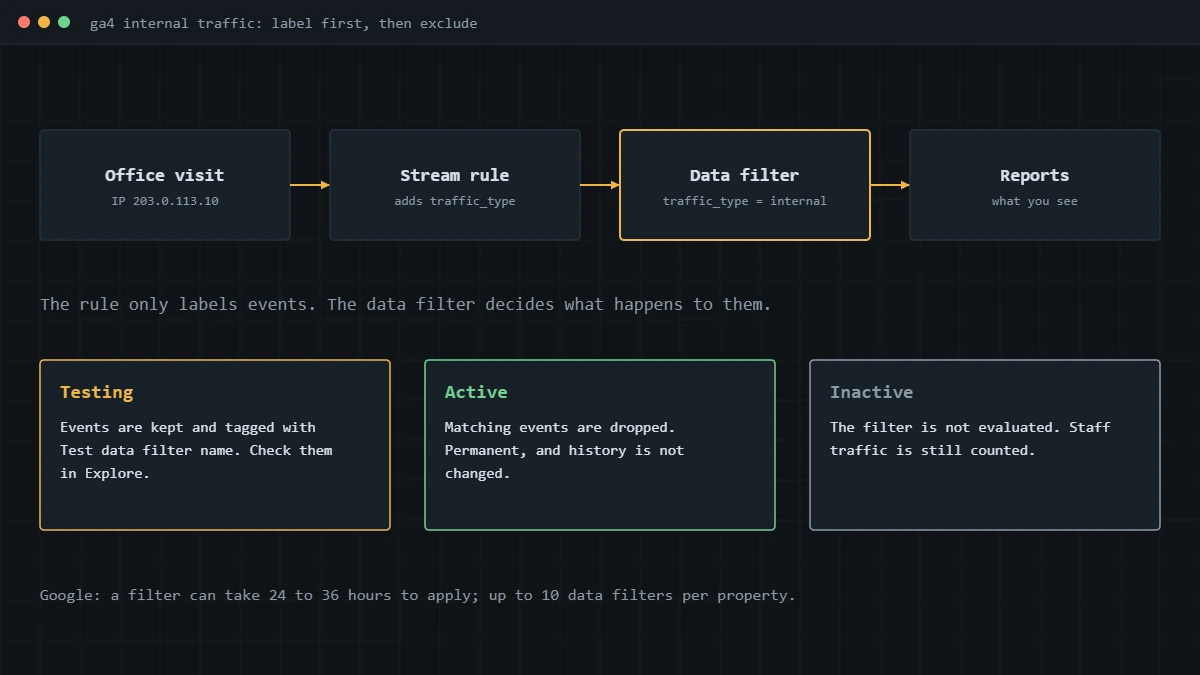
Two things follow from that design. The rule does nothing on its own, so a property with rules and no active filter is still counting staff. And because the label is only an event parameter, anything else that sets traffic_type, such as a GTM variable, can feed the same filter. That is how I handle people who are not behind a fixed IP, further down.
How do I set up the internal traffic rule and data filter?
You need Editor access on the property. These steps follow Google’s current Admin layout.
- Find the office’s public IP address by searching “what is my IP” from the office network. Check whether the connection also uses IPv6; GA4 accepts both.
- In Admin, open Data streams, choose the web stream, then Configure tag settings, Show more, Define internal traffic.
- Click Create, name the rule after the location, keep the
traffic_typevalue asinternalunless you want to tell locations apart, pick a match type and enter the address. Google lists equals, begins with, ends with, contains, is in range (CIDR notation) and matches regular expression. - In Admin, open Data filters, click Create Filter and choose Internal Traffic. Set the operation to Exclude and the parameter value to the same value the rule uses.
- Save the filter in the Testing state.
If the rule uses a custom value such as office_nyc, the filter has to use that exact value. A mismatch between rule and filter is the most common reason I find a filter that exists and excludes nothing.
How do I test the filter before activating it?
Leave it in Testing for a few days and look at its matches in Explore. In the Testing state GA4 keeps matching events and marks them with the Test data filter name dimension, so you can see exactly what would be dropped. Active applies the filter permanently, and Inactive means GA4 does not evaluate it (Google).
My check is a free-form exploration with Test data filter name as the row and Event count plus Key events as values. I browse the site from the office, wait for processing, and confirm my visits carry the filter name while customer traffic shows (not set). Then I look at the share. If the filter would remove a large slice of key events, I recheck the IP range before activating. That pattern usually means the range is too wide, for example a mobile carrier block that also covers customers.
Activating is one-way. Google says data excluded by an active filter is never processed and is not available later in Analytics or BigQuery, and filters do not change data collected before they were created (data filters help article). If you want staff activity visible but separated, use a report filter or a comparison on the test dimension instead of excluding it.
Google also says a data filter can take 24 to 36 hours to apply, and a property can have up to 10 data filters. I plan those slots: one for developer traffic, one or two internal values, and spare room.
What if my team works remotely or the IP keeps changing?
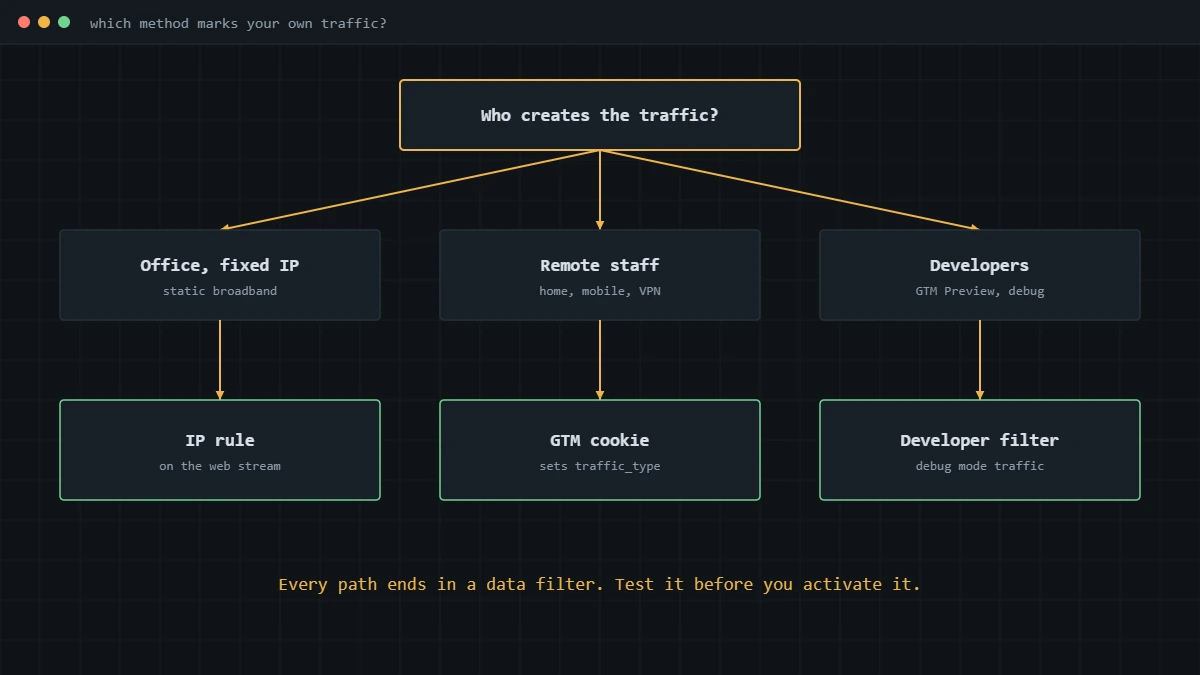
IP rules only work for fixed addresses. Home broadband, mobile data and VPNs change, so for remote staff I set traffic_type from GTM instead of from the stream rule. A small first-party cookie marks a browser as internal. Each staff member visits a URL like yoursite.com/?internal=1 once per device, GTM reads the cookie, and the Google tag sends traffic_type=internal. The same data filter excludes it.
// Custom HTML tag, trigger: Page View where Page URL contains internal=1
<script>
  document.cookie = "ag_internal=1; path=/; max-age=31536000; SameSite=Lax";
</script>

// 1st-Party Cookie variable "Cookie - ag_internal" reads ag_internal
// Lookup Table variable "traffic_type value":
//   input {{Cookie - ag_internal}}, 1 -> internal, no default value
// Google tag, configuration parameter: traffic_type = {{traffic_type value}}
One catch: Safari deletes cookies created by JavaScript after 7 days without user interaction with the site (WebKit tracking prevention). Staff on Safari who stay away for a week need to reopen the marker URL.
How is developer traffic different from internal traffic?
Developer traffic is activity sent in debug mode, for example from GTM Preview or Tag Assistant. GA4 has a separate developer traffic filter type for it (Google). I run both: the developer filter keeps Preview sessions out of reports, and the internal filter covers staff browsing normally.
Why is my GA4 internal traffic filter not working?
In order of how often I find them:
- The filter is still in Testing. It has been “set up” for months and has never excluded anything.
- The rule value and the filter value differ, often
internalversusInternalor a location name. - The office IP changed. Many business broadband plans do not include a static address.
- The connection uses IPv6 and the rule only has the IPv4 address.
- Events go through a server-side container. I confirm in DebugView that
traffic_typestill arrives on the events, because what GA4 matches depends on the visitor IP the server forwards. - Someone expects past reports to change. Filters only apply going forward. How long event-level data stays available for explorations is a separate setting, covered in GA4 data retention.
Clean internal traffic is one part of making key events trustworthy before they reach Google Ads. The wider setup is in my guide to marking GA4 key events correctly, how imports behave in bidding is covered in Google Ads conversion tracking that holds up, and the way these pieces fit together is in how conversion tracking works and why it breaks.
If you want me to check the filters, key events and Google Ads imports in your property, that is part of my GA4 and GTM setup work.
Frequently asked questions
Does the GA4 internal traffic filter remove past data?
No. Data filters apply from the moment they become active. Sessions and key events your team created before that stay in the reports, so compare periods with that in mind.
How long does a GA4 internal traffic filter take to work?
Google says a data filter can take 24 to 36 hours to apply. I wait at least a day after switching to Active before checking that staff visits have disappeared from standard reports.
Can I see internal traffic after excluding it?
Not once the filter is Active, because excluded events are never processed. If you want staff activity visible but separated, keep the filter in Testing and use the Test data filter name dimension, or skip exclusion and use report comparisons.
How many internal traffic filters can a GA4 property have?
A property can have up to 10 data filters in total, shared across internal and developer traffic. One internal traffic rule can hold several IP conditions, which GA4 joins with OR logic, so one filter often covers multiple offices.
Does excluding internal traffic affect Google Ads conversions imported from GA4?
Yes, in the useful direction. Events excluded by an active filter are not processed, so they never become key events and are never imported as conversions. That keeps staff test leads out of Smart Bidding.
About the author
I’m Ghazanfar, founder of Analytigrow and a conversion tracking specialist. For 7+ years I’ve set up GA4, GTM, server-side tracking and ad platform conversions for ecommerce and lead-gen businesses in the US, UK, EU and UAE. I’m Top Rated on Upwork with 100% Job Success. Reach me at [email protected] or on WhatsApp.
Find out what's actually broken.
A tracking audit tells you exactly which events are wrong, why, and what it takes to fix them. No pitch deck, just the findings.