WooCommerce Google Ads conversion tracking without duplicates
Last updated November 5, 2026 · Ghazanfar · 10 min read
In this post
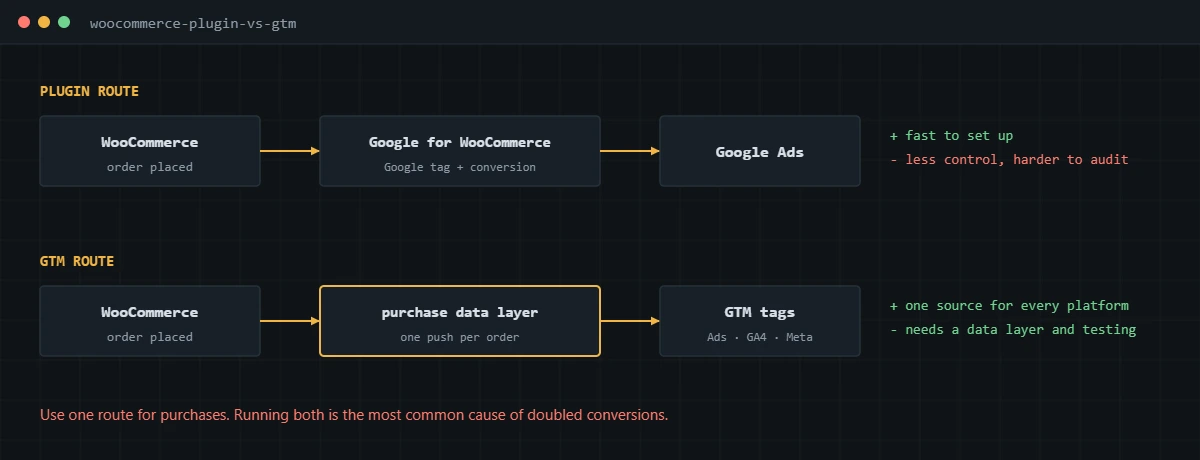
WooCommerce Google Ads conversion tracking sends each completed order to Google Ads with its order number, value and currency, so campaigns are credited and bid on real sales. You can do it with the Google for WooCommerce plugin or with a purchase data layer and Google Tag Manager, which gives you more control.
The question I get most from WooCommerce store owners is whether to use a plugin or GTM. The honest answer depends on how many platforms you advertise on and how much you trust the numbers today. What I see in audits is that most broken WooCommerce setups don’t fail because of the choice. They fail because both routes end up running at once, or because the purchase fires every time the order-received page is opened. If you want the background on how conversion tracking works across platforms first, my conversion tracking guide covers it.
Should you use a plugin or GTM for WooCommerce Google Ads tracking?
Use the plugin if Google Ads is your only paid channel and you want it running quickly. Use a GTM data layer if you also run GA4 ecommerce and Meta, or if you need to audit exactly what is sent.
| Google for WooCommerce plugin | GTM with a purchase data layer | |
|---|---|---|
| Setup time | Short; connects your Google accounts | Longer; needs a data layer, tags and testing |
| Platforms covered | Google Ads, GA4, Meta and others from one source | |
| Control over values and IDs | What the plugin sends | Whatever you define |
| Enhanced conversions | Supported by the plugin | Via a User-Provided Data variable |
| Auditing | Harder; logic sits inside the plugin | Visible in GTM Preview and the data layer |
The plugin’s WordPress.org listing describes its Google tag and conversion tracking, plus enhanced conversions. If you go this way, make sure no other plugin or GTM tag also sends the Google Ads purchase. Many WooCommerce sites also run GTM4WP to load the container, and that plugin can output its own WooCommerce data layer, which is another common source of a second purchase.
How do you build a WooCommerce purchase data layer?
Hook into the order-received page, read the order, and push one purchase event with the order number, value, currency, items and customer data. The woocommerce_thankyou action runs on that page and passes the order ID, which makes it the natural place to do this.
add_action( 'woocommerce_thankyou', function ( $order_id ) {
  $order = wc_get_order( $order_id );
  if ( ! $order || $order->get_meta( '_ag_dl_sent' ) ) {
    return; // already sent once for this order
  }
  $items = array();
  foreach ( $order->get_items() as $item ) {
    $product = $item->get_product();
    $items[] = array(
      'item_id'   => $product ? $product->get_sku() : $item->get_product_id(),
      'item_name' => $item->get_name(),
      'price'     => (float) $order->get_item_subtotal( $item, false ),
      'quantity'  => $item->get_quantity(),
    );
  }
  $data = array(
    'event'     => 'purchase',
    'ecommerce' => array(
      'transaction_id' => (string) $order->get_order_number(),
      'value'          => (float) $order->get_subtotal() - (float) $order->get_discount_total(),
      'tax'            => (float) $order->get_total_tax(),
      'shipping'       => (float) $order->get_shipping_total(),
      'currency'       => $order->get_currency(),
      'items'          => $items,
    ),
    'user_data' => array(
      'email'        => $order->get_billing_email(),
      'phone_number' => $order->get_billing_phone(),
    ),
  );
  $order->update_meta_data( '_ag_dl_sent', 1 );
  $order->save();
  echo '<script>window.dataLayer = window.dataLayer || [];'
    . 'dataLayer.push({ ecommerce: null });'
    . 'dataLayer.push(' . wp_json_encode( $data ) . ');</script>';
}, 20 );
This is the pattern I use as a starting point. It goes in a small custom plugin or a code snippets plugin, never in a parent theme file that an update will overwrite. Three details matter:
- transaction_id uses the order number, which is what the store team sees, so reconciliation is easy.
- value is a number, product revenue after discounts, with tax and shipping sent separately.
- The order meta flag means the push happens once per order, which the next section explains.
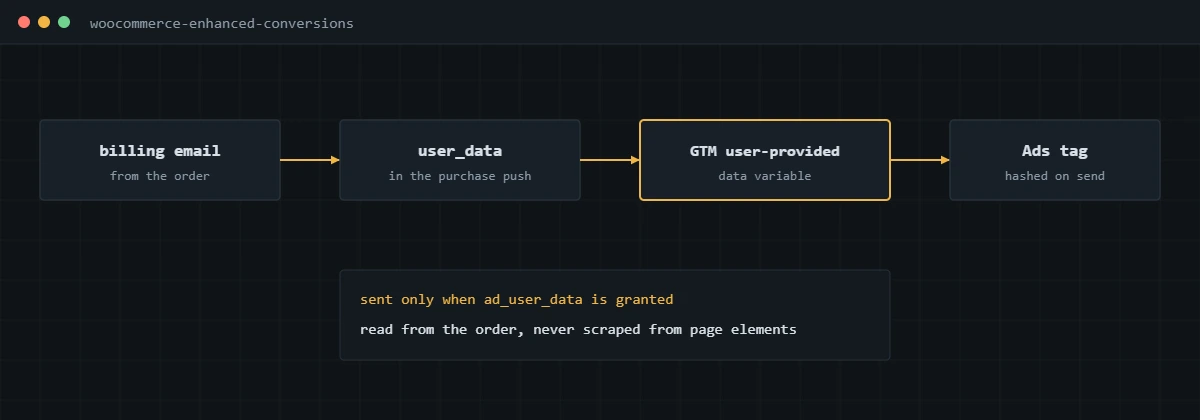
The email and phone are in the data layer so GTM can hash them for enhanced conversions. They appear only on the buyer’s own confirmation page. If your privacy policy or consent setup requires it, hash them in PHP before output instead.
In GTM, a Custom Event trigger on purchase fires the Google Ads Conversion Tracking tag with Order ID, value and currency mapped from the data layer. The same trigger can fire the GA4 purchase tag, which my GA4 conversion tracking guide covers, and the Meta Purchase tag.
How do you stop duplicate purchases on thank-you page reloads?
Record on the order that the purchase has been sent, and skip the push when that flag is set. A guard stored on the order works across reloads, devices and the order link in the confirmation email.
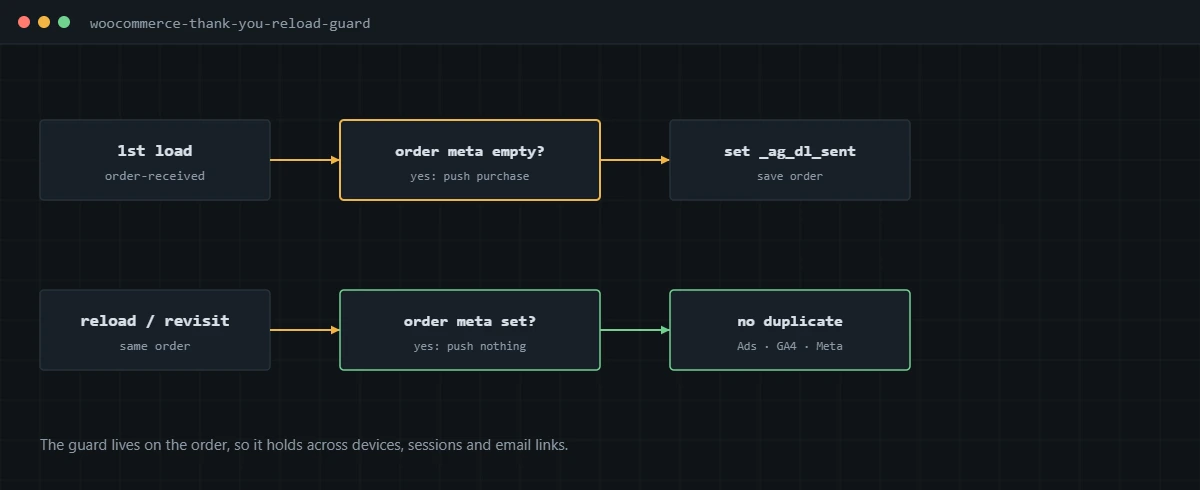
Cookie-based guards are common and weaker, because they only work in the same browser. With the order flag in place, still send the order number as the Order ID on the Google Ads tag. Google uses it to drop repeat conversions for the same action, so it acts as a second safety net.
There is one trade-off. The flag is set when the page renders, so if the visitor’s browser then blocks the tags, that order is not resent later. That is acceptable for browser tracking, and it is exactly the gap that server-side tracking from the order webhook can fill.
How do you add enhanced conversions on WooCommerce?
Send the billing email and phone from the order in the purchase data layer, read them with a User-Provided Data variable in GTM, and attach that variable to the Google Ads conversion tag.
- Turn on enhanced conversions in Google Ads under Goals, then Conversions, then Settings, and accept the customer data terms.
- In GTM, create a User-Provided Data variable set to code or manual mapping, reading user_data.email and user_data.phone_number from the data layer.
- Add it to the Google Ads Conversion Tracking tag’s user-provided data field.
- Format phone numbers with the country code; WooCommerce often stores them as typed.
- Place a test order and confirm in Tag Assistant that user data is present on the conversion hit.
Google merged enhanced conversions for web and for leads into one setting in 2026, which I explain in my Google Ads conversion tracking guide. The Google Ads help article on the change has the details.
How does consent affect WooCommerce conversion tracking?
Your consent plugin decides what the tags may do, and Consent Mode passes that decision to Google’s tags. A misconfigured banner either blocks all conversions or ignores visitors’ choices.
On this kind of setup I connect the consent plugin, such as CookieYes, to GTM with Consent Mode v2 defaults set before any tag loads, then test the order flow in both the granted and denied states. With ad_user_data denied, the hashed email isn’t sent, so expect fewer enhanced matches from those visitors. Google describes the behavior in its consent mode overview.
How do you test WooCommerce Google Ads conversion tracking?
- Enable a test payment method or use a 100% coupon on a real product.
- Open GTM Preview, complete the order, and check the purchase event in the data layer: order number, numeric value, currency, items and user data.
- Confirm exactly one Google Ads conversion hit with the right conversion label, Order ID and value.
- Reload the order-received page and confirm no second purchase push.
- After a week, compare Google Ads conversions by conversion time with WooCommerce orders, keeping in mind Google Ads credits only its own clicks.
For the wider picture across GA4, Google Ads and Meta, including refunds and reconciliation, see my ecommerce conversion tracking guide.
If your WooCommerce store shows doubled or missing Google Ads conversions, I can rebuild the purchase tracking end to end and verify it with real orders.
Frequently asked questions
Do I need a plugin to track Google Ads conversions on WooCommerce?
No. A plugin is the quickest route, and Google for WooCommerce adds the Google tag and conversion tracking for you. A GTM data layer takes more setup but gives one purchase source for Google Ads, GA4 and Meta, which is what I use on stores that advertise on more than one platform.
Why does Google Ads count more WooCommerce conversions than orders?
Usually because two sources send the purchase, such as a plugin and a GTM tag, or because the tag fires on every view of the order-received page. Sending the order number as the Order ID lets Google Ads drop repeats for the same action, but the real fix is one source and a reload guard.
Which WooCommerce value should I send as conversion value?
I send product revenue after discounts, before tax and shipping, and pass tax and shipping separately in the data layer. Whatever you choose, use the same definition in Google Ads, GA4 and Meta so the numbers can be compared.
Does the order-received page still work with block checkout?
In the stores I work on, yes, but block-based checkout and order confirmation templates change between WooCommerce versions. After any update, place a test order and confirm the purchase push still appears on the confirmation page.
How do I set up enhanced conversions on WooCommerce?
Put the billing email and phone from the order into the purchase data layer, read them with a User-Provided Data variable in GTM, and attach it to the Google Ads conversion tag. Turn on enhanced conversions in Google Ads and make sure consent for ad_user_data is respected.
Will caching plugins break WooCommerce purchase tracking?
They can if the order-received page is cached, which would show one customer’s order data to another. Most caching plugins exclude WooCommerce checkout and account pages by default; I always confirm that exclusion is in place.
About the author
I’m Ghazanfar, founder of Analytigrow and a conversion tracking specialist. I started in WordPress development in 2018 and for 7+ years have built and fixed WooCommerce tracking across Google Ads, GA4, Meta Pixel and Conversions API and server-side GTM on Stape for stores in the US, UK, EU and UAE. I’m Top Rated on Upwork with 100% Job Success. Reach me at [email protected] or on WhatsApp.
Find out what's actually broken.
A tracking audit tells you exactly which events are wrong, why, and what it takes to fix them. No pitch deck, just the findings.